If you’re trying to install apollotv on Firestick, this guide shows you how to do it in minutes. We walk you through setup, login, and the three most common problems users face. These include download issues, login errors, and playback problems.
It works for all Firestick models in the USA and Canada.
Estimated time: ~5 minutes
What you need: Firestick, internet, login credentials
This guide helps you complete installation and avoid fake providers. Whether you’re a new user or troubleshooting an issue, you’re in the right place.
Check our prices here !
Table of Contents
Quick Steps to Install apollotv on Firestick
Use this section to install Apollotv on Firestick quickly without extra searching. It’s built to save time and help you get streaming faster. Follow these instructions first before digging into the full setup.
Install Summary (Do This First)
- Open Firestick Settings
- Select My Fire TV
- Choose Developer Options
- Turn on Apps from Unknown Sources
- Go back to the home screen
- Use the Downloader app or a direct install method
- Install the apollotv app file
- Open apollo tv on Firestick
- Sign in using your login credentials
- Channels will begin to load
- Apply the three recommended settings in the app
These fast steps will set up apollo tv on Firestick in less than five minutes. Make sure you complete them in order. This improves your chances of avoiding install issues later.
Step-by-Step Install for apollotv on Firestick
This section breaks down how to install apollotv on Firestick using clear, simple steps. It’s written for users in the USA and Canada and works with all Firestick models.

Step 1: Prepare Firestick Settings
Before installing apollo tv on Firestick, adjust a few settings to allow third-party apps.
- Go to Firestick Settings
- Select My Fire TV
- Tap Developer Options
- Turn on ADB Debugging
- Enable Apps from Unknown Sources
- Confirm any warning pop-up
These changes are required so your Firestick allows apps like apollo tv to be installed from outside the Amazon store.
Step 2: Choose an Install Method
There are two safe methods for installing apollotv on Firestick.
Option A: Install through direct source (preferred)
Use the official install file from a trusted source. Enter the exact URL into the Downloader app.
- Open the Downloader app
- Allow storage permissions if prompted
- Enter the official apollotv download link
- Wait for the file to download
- Click Install
- Once finished, select Done or Open
Option B: Install with backup link
If the main link fails, you can use a secondary verified source that supports apollo tv on Firestick.
Important: Only use links shared by verified support sites. Many scam versions look similar to the real apollotv.
Step 3: Open apollo tv and Sign In
After installation:
- Open apollo tv on Firestick
- Enter your login credentials
- Press Sign In
If you see “Invalid Credentials,” check these:
- Double-check for typos in your email or password
- Make sure your subscription is active
- Confirm the login portal is correct
What You Should See on Screen:
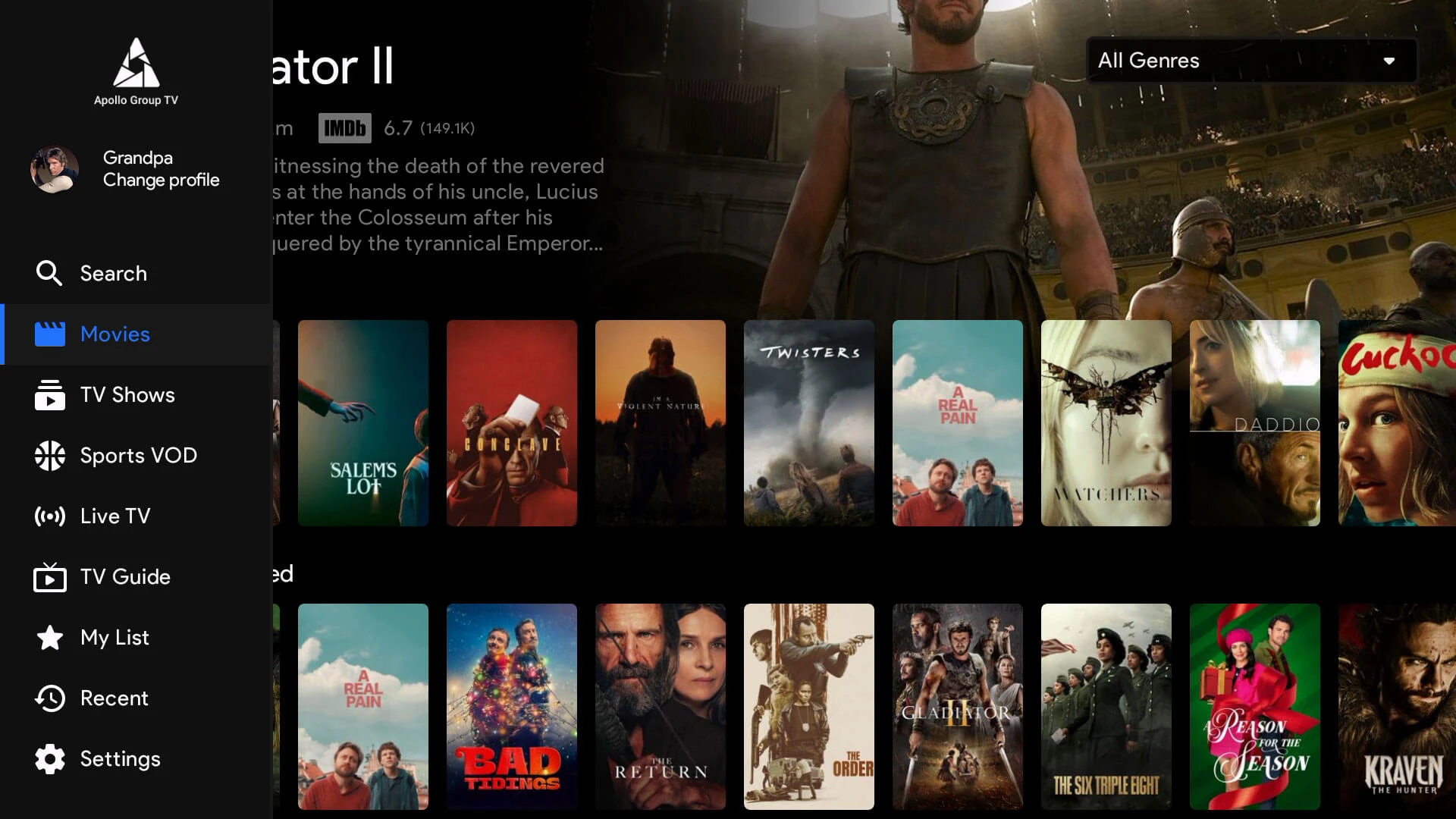
- Main menu with categories like Live TV, Movies, and Sports
- Profile options (if available)
- Loading bar or welcome screen confirming the app is ready
Completing these three steps correctly will fully install apollo tv on Firestick and get you ready to watch.
Firestick Setup Checklist for Apollo tv
After you install apollotv on Firestick, a few settings will make streaming smoother and avoid common problems. This section covers the exact steps to follow for better video quality, stable playback, and faster app performance.
Best Settings for Smooth Streaming
These settings improve how apollotv on Firestick runs and prevent freezing or buffering.
- Set video quality to Auto for the best balance between quality and speed
- If you prefer manual, choose Original only if your connection is fast
- Use the built-in Player recommended in the app settings
- Set buffering mode to Low if you see delays or stutters
- Leave other settings at default unless you know what they do
These changes help stabilize apollo tv on Firestick, especially during live streams or sports.
Network Sanity Check
Your connection plays a big role in how apollotv on Firestick performs.
- Use a Firestick speed test app or visit a speed test site
- Look for download speeds of at least 25 Mbps for HD and 50 Mbps for sports or 4K
- For best results, connect to 5 GHz Wi-Fi instead of 2.4 GHz
Slow speeds often cause buffering in apollo tv on Firestick, so test your network early.
Quick Performance Boost
If apollotv on Firestick feels slow or freezes often, try this routine:
- Go to Firestick Settings
- Select Applications
- Choose Manage Installed Applications
- Find apollotv
- Tap Clear Cache
- Restart your Firestick
- Reopen the app and sign in again
Also close any unused apps running in the background. This frees up memory and helps apollotv on Firestick load faster.
Fix Problems During Install of apollotv on Firestick
If you’re having trouble installing or running apollotv on Firestick, this section helps you fix the most common issues fast. Each fix includes the reason and a quick action so you can get back to streaming.
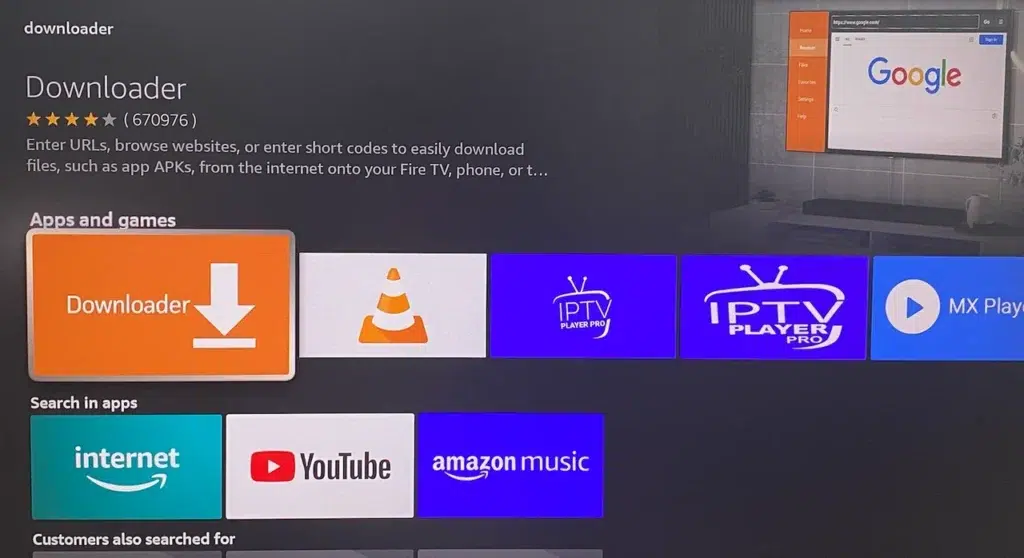
If the App Won’t Download or Install
Sometimes apollo tv on Firestick won’t download or install. Try these steps:
- Check storage: Go to Firestick Settings and free up space
- Enable unknown apps: Double-check that “Apps from Unknown Sources” is turned on
- Use the correct region: Some store settings block installs outside the USA or Canada
- Reboot Firestick: A simple restart often clears stuck downloads
After doing this, try downloading apollo tv on Firestick again.
If Login Fails or Shows “Invalid Credentials”
When you open apollotv on Firestick, login errors can happen. Here’s how to fix them:
- Make sure you entered your email and password exactly
- Check if your subscription has expired
- Use the correct portal link (from your welcome email or provider page)
- Avoid using old saved login data
Once corrected, open apollo tv on Firestick and try logging in again.
If Channels Don’t Load or Show Playback Error
If apollotv on Firestick opens but channels stay blank or give errors:
- Go to device Time and Date settings and set them to Automatic
- Restart the app
- Reboot your Firestick
- Switch to a different Wi-Fi network or mobile hotspot
- Try using a VPN if your ISP blocks IPTV access
After these steps, reload apollotv on Firestick and check if channels play.
If Buffering Happens on Firestick
Buffering is one of the top complaints with apollotv on Firestick. Here’s how to reduce it:
- Connect to 5 GHz Wi-Fi instead of 2.4 GHz
- Lower stream quality from Original to Auto
- Clear app cache (Firestick Settings > Applications > apollotv > Clear Cache)
- Reboot your router and Firestick
Expected Result: You should now see smoother playback and shorter load times inside apollo tv on Firestick.
USA and Canada Notes for apollo tv on Firestick
When you install apollotv on Firestick, your location can affect how the app works. This section highlights differences users in the USA and Canada might face during setup or streaming.
Common Differences You’ll Notice
Although apollotv on Firestick runs the same app version in both countries, some issues happen more often in one region than the other.
- ISP interference:
In the USA, some internet providers may block or slow IPTV traffic. A VPN can help avoid this. In Canada, blocking is less aggressive but can still occur during peak hours. - Payment-related logouts:
Sudden login issues on apollo tv on Firestick can come from failed renewals. U.S. users often face delays with certain card types. Canadian users may need to double-check third-party payment portals. - Download access:
If your Firestick store region is incorrect, you might not see the right install link. This happens more often outside Canada and the USA.
USA vs Canada Firestick Install Issues
| Issue | USA Users | Canada Users |
|---|---|---|
| ISP Blocking | More common | Less common |
| Payment Errors | Card rejections, retry delays | Third-party portals more likely to work |
| App Store Region Limitations | Often need manual install | Usually easier if region is set to Canada |
| VPN Use | Highly recommended | Optional but helpful |
By understanding these regional patterns, you can set up apollo tv on Firestick with fewer surprises.
FAQ: apollotv on Firestick (USA & Canada)
This section answers the most common questions users ask when setting up apollotv on Firestick. Each answer is written for real users in the USA and Canada using Firestick devices of all versions.
Can I install apollo tv on Firestick Lite, 4K, or 4K Max?
Yes. You can install apollo tv on Firestick Lite, Firestick 4K, and Firestick 4K Max with the same steps. The app works across all Fire TV Stick versions without changes to the process.
Why does apollotv show a playback error on Firestick?
If apollo tv on Firestick gives a playback error, check your internet connection first. Then restart the app and confirm your time settings are set to automatic. If the error continues, clear cache or try a different network.
How do I clear cache on Firestick?
To improve performance for apollo tv on Firestick:
Go to Firestick Settings
Choose Applications
Select Manage Installed Applications
Tap on apollotv
Choose Clear Cache
This fix often helps with buffering or lag.
What if my channels don’t load?
When channels fail to load in apollo tv on Firestick, restart the app, clear the cache, and check your internet speed. Also make sure your subscription is active and your login is valid.
How many devices can I use with apollo tv?
Most plans for apollo tv on Firestick support up to five devices at the same time. Check with your provider to confirm your plan’s limit.
Final Checklist for apollotv on Firestick
Use this checklist to confirm that apollotv on Firestick is installed, working, and ready to stream without issues. Each step helps avoid common mistakes that delay setup or cause playback problems.
Installed: You installed apollo tv on Firestick using either the official source or Downloader method
Logged in: Your login credentials were entered correctly and access was granted
Settings applied: Streaming settings like video quality and buffering mode were adjusted
Playback tested: Channels, movies, or series played without freezing or error
Fixes tried if needed: You followed the troubleshooting steps for login, buffering, or app loading
If something still isn’t working, visit your provider’s support page or verified contact link. For any questions about apollo tv on Firestick, avoid unknown sites or unofficial downloads.