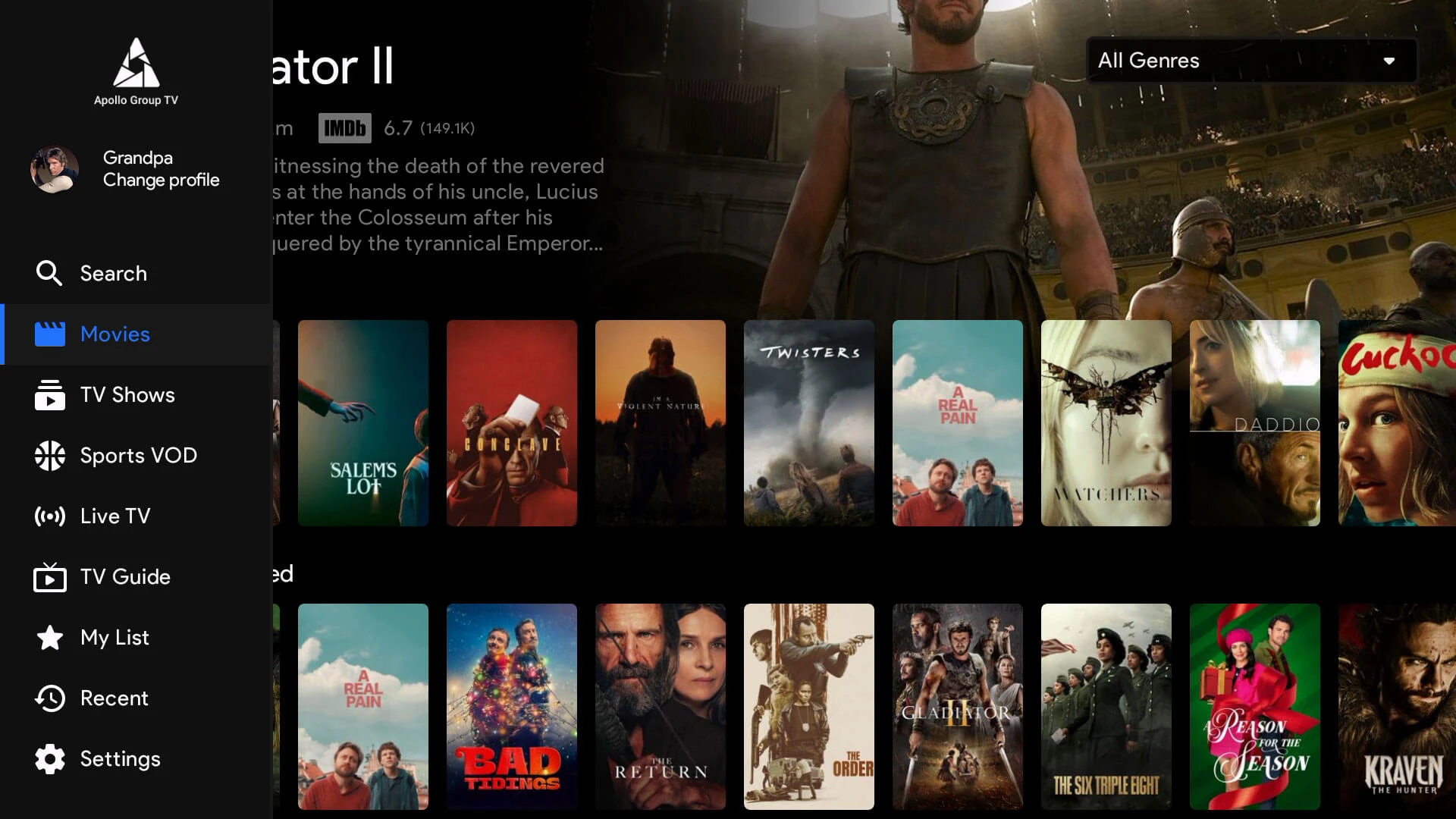

Smarters Pro is a customizable media player with lots of features. The Smarters app lets users watch live TV, VOD, series, and TV catchup. It works on many devices, making it easy to watch content anywhere.
This app is easy to use and has great features. It’s a top choice for streaming IPTV content.
Using Smarters Pro has many benefits:
Choosing the IPTV Smarters app as your Firestick IPTV solution gives you top-notch streaming tools. Enjoy a smooth streaming experience easily.
To set up IPTV Smarters smoothly in Canada, start by choosing the right device: Fire TV/Firestick, Android/Android TV, iPhone/iPad, or a Smart TV solution. After installing the app, open it and follow the on-screen prompts to create a profile and organize your viewing layout. The app is designed to load categories, favorites, and a TV guide (EPG) so browsing channels feels fast and simple.
For the best results, keep your device updated, close unused apps running in the background, and use a stable Wi-Fi signal or wired connection where possible. If you notice buffering, the cause is often your network quality or device load rather than the IPTV Smarters interface itself. In the sections below, you’ll find device-specific installation guidance, performance settings to improve smoothness, and troubleshooting steps that solve the most common problems quickly.
The Amazon Firestick is loved for its easy use and flexibility. It works great with many streaming apps, especially IPTV Pro. This makes it a top pick for streaming IPTV.
“The Amazon Firestick’s compatibility and easy interface make it the best choice for IPTV streaming. It’s versatile, ensuring great IPTV viewing for everyone, from casual watchers to sports fans.”
The Amazon Firestick is a top pick for IPTV streaming. It combines functionality, ease of use, and quality streaming. This makes it a great addition to any home.
IPTV Smarters can run well on Firestick devices when storage is not full and the system is updated. For smoother performance, keep at least a few GB of free space, restart the device regularly, and avoid running multiple streaming apps at the same time. If your stream stutters at night, prioritize a stronger Wi-Fi signal (5 GHz when available) or consider an Ethernet adapter for a more stable connection.
On Android phones and Android TV boxes, IPTV Smarters performance depends heavily on the device’s RAM and CPU. Use a modern Android TV device for the best results, update the app regularly, and allow the app the permissions it needs for playback. If you experience lag, clearing cache and reducing background apps usually helps.
On iOS, IPTV Smarters is generally smooth when your connection is stable. If playback freezes, check Low Power Mode, close background apps, and confirm your Wi-Fi signal strength. iPhones and iPads often perform well, but streaming quality still relies on your network stability.
Some Smart TVs don’t support IPTV Smarters directly. In those cases, many users choose a streaming device (Android TV/Firestick) connected to the TV for better app compatibility and performance. This setup usually provides faster navigation, better updates, and more consistent playback than relying only on built-in TV app stores.
Before you start installing IPTV Smarters Pro, make sure your Firestick is ready. Check if it works well with Smarters Pro and have a good internet connection for streaming without interruptions.
Not every Firestick can run IPTV Smarters Pro. Here’s how to check if yours can:
A stable internet connection is key for smooth streaming. Follow these steps to make sure your internet is ready:
Use these practical settings and habits to reduce buffering and improve stability:
Keep video quality set to a level your connection can handle (HD before 4K if needed)
Prefer 5 GHz Wi-Fi or wired Ethernet when possible
Restart your device weekly and clear cache if the app slows down
Avoid heavy downloads while streaming
If you use a VPN for privacy, choose a nearby server to reduce latency
To install third-party apps on your Amazon Firestick, you need to change some settings. You must enable the “Apps from Unknown Sources” feature. This is done by accessing the Firestick developer options. Just follow the steps below for a smooth and secure installation.
First, go to the Settings menu from your Firestick home screen. Then, scroll over and select My Fire TV. Inside, find and click on Developer Options. These options are crucial for installing apps from sources other than the Amazon App Store. They let you access all the apps you want.
After getting into the Developer Options, look for the Apps from Unknown Sources setting. Turn it on to allow third-party app installations. You’ll be asked to confirm your choice. Once you do, you’re all set to install third-party apps easily and securely.
The Downloader App is key for a smooth experience in side-loading apps on Firestick. It helps install apps like Smarters Pro from outside the Amazon App Store.
The Downloader App for Firestick is a vital tool. It lets users download and install apps not found in the Amazon App Store easily. This app makes side-loading apps on Firestick simple by allowing you to enter URLs for APK files directly.
By following these easy steps, you can install the Downloader App. This prepares you to download Smarters. It makes side-loading apps on Firestick efficient and easy.
First, make sure you have the Downloader App installed. Then, you can start downloading IPTV Smarters Pro. This guide will help you with the right URL and ensure a smooth download and installation.
Open the Downloader App on your Firestick to start downloading IPTV Smarters. Type the correct download link for the IPTV Smarters Pro APK into the URL field. Double-check the URL to prevent any download errors. After entering the URL, hit the Go button to start the download.
Once you click Go, the IPTV Smarters Pro APK will begin downloading. When it finishes, a prompt will ask if you want to install the app. Click Install to move forward. The installation should be quick.
After it’s done, you’ll see a message saying IPTV Smarters is installed on your Firestick. You can open the app right away or find it later in your app list. You’ve now successfully downloaded and installed IPTV Smarters on Firestick.
After installing IPTV Smarters Pro on your Firestick, you need to set it up for streaming. This means launching the app and putting in your IPTV service details.
Go to your Firestick’s home screen and find the IPTV Smarters Pro icon. Click on it to open. If it’s the first time, you might see a request for permissions. Just click ‘Allow’ to let the app work right.
Once open, you’ll see the IPTV Smarters login screen. Here, you’ll put in the details from your IPTV provider. You’ll need:
After filling in these details, click ‘Add User’. This connects IPTV Smarters Pro to your service, making streaming easy.
IPTV Smarters Pro is easy to use and lets you create many user profiles. This is great for homes where everyone watches different things. You can make streaming profiles just for each person. Here, we’ll show you how to add and switch between profiles. This makes using IPTV Smarters Pro better for everyone.
To add a new user profile in IPTV Smarters Pro, just follow these easy steps:
By making streaming profiles for each person, you make sure everyone gets their own viewing experience at home.
Switching between user profiles in IPTV Smarters Pro is easy:
This makes it easy to switch profiles without trouble. You can quickly get to each user’s preferences and saved settings.
Even with a perfect setup, users might face IPTV Smarters issues like buffering or app crashes. This section offers troubleshooting tips to improve your streaming. It focuses on Firestick troubleshooting methods.
Buffering can be really annoying when watching shows and sports. Here are key buffering fixes:
App crashes are a common problem. Here are steps for troubleshooting IPTV:
| Issue | Possible Fix |
|---|---|
| Buffering | Check Internet speed, clear cache, adjust buffer size |
| App Crashes | Update app, reinstall app, check for firmware updates |
In today’s digital world, keeping your IPTV private is key. When you stream securely on Firestick, it’s important to protect your data. Using a VPN for IPTV is a great way to do this. VPNs encrypt your data, making it tough for others to see or use it.
These steps are key for keeping your IPTV private. By using strong passwords, knowing the streaming laws, and using a VPN for IPTV, you can stream safely on Firestick. This way, you won’t risk sharing your personal info.
Installing IPTV Smarters Pro on your Firestick is easy and brings many benefits. This guide has shown you how to install and set it up smoothly. We’ve covered everything from getting your device ready to downloading and setting up the app.
Using your Firestick for IPTV Smarters Pro means you get a simple interface and great streaming power. Our review of Smarters pointed out its top features and ease of use. This makes it a great choice for watching your favorite IPTV shows.
Starting your IPTV setup means thinking about streaming safely and keeping your privacy safe. By following this guide, you can easily install and set up IPTV Smarters Pro. This opens up a world of entertainment for you to enjoy.
IPTV Pro is a customizable media player. It lets users watch live TV, video on demand (VOD), series, and catch-up TV. You can use it on Android, Apple devices, and Windows PC.
Some versions are free and some features may be paid, depending on the app version.
Smarters Pro on your Firestick has many benefits. It supports multiple screens, has an easy-to-use interface, and offers EPG support. It also lets you combine multiple IPTV subscriptions in one place.
The Amazon Firestick is great for IPTV streaming. It has a simple interface, is portable, and works well with Smarters Pro. It also supports high-definition streaming, making it a top choice for streaming devices.
Make sure your Firestick runs the latest Fire OS. Check the setup guidelines for your model. This will tell you if it’s compatible with IPTV Pro.
For stable internet, use a fast and reliable service. Place your Firestick near the router. If Wi-Fi is weak, consider using an Ethernet adapter.
Go to Settings > My Fire TV > Developer Options. Turn on ‘Apps from Unknown Sources’ and ‘ADB Debugging’. This lets you install third-party apps.
The Downloader App helps you install apps on your Firestick from outside the Amazon App Store. You need it to get apps like Smarters Pro.
Go to the Amazon App Store on your Firestick. Search for ‘Downloader’, select the app, and click ‘Download’ or ‘Get’ to install it.
Open the Downloader App, enter the IPTV Pro APK URL, and follow the prompts to download and install it.
Launch Smarters Pro, enter your IPTV service details like username, password, and server URL. Then, start streaming content.
Open IPTV Pro, go to the profile management section, and select ‘Add User’. Fill in the details for each profile and save. Switch between profiles as needed.
Fix buffering by checking your internet connection and placing your Firestick near the router. Clear the app cache and restart the app or device if needed.
If the app crashes, clear the app cache, restart it, or reinstall Smarters Pro. Make sure your Firestick and app are updated.
Use a VPN to hide your online activity. Keep strong passwords, don’t share your IPTV details, and know the legal IPTV streaming rules in your area.
Apollo Group TV subscription is a smart way for Canada fans to plan their FIFA World Cup 2026 viewing without stacking extra costs from multiple add ons. The tournament runs for weeks, and most people do not want to juggle different apps, different bills, and last minute upgrades just to catch every match.

The 2026 World Cup is coming to Canada, and this guide is built for fans who want more than a basic schedule. You already know the big headline: Canada is a co host, and matches are set for Toronto and Vancouver. What you need next is the real how to, like where to stay, how to move around fast on game day, and what to expect with tickets in early 2026.
After reviewing official guidance and the main host city pages, I built this

If you’re trying to install apollotv on Firestick, this guide shows you how

As a football fan in Canada, you do not want a spinning wheel

Appolo TV has quickly become one of the most searched IPTV services in Canada, especially among viewers who want to replace expensive cable with a more flexible streaming solution. Instead of paying high monthly bills to Bell, Rogers, or Telus, many households are turning to appolo tv to access live sports, local Canadian channels, and large video on demand libraries through one simple app.

Apollo TV IPTV has quickly become one of the most talked about streaming options for Canadians who want to replace expensive cable with a faster and more flexible solution. Instead of paying high monthly bills to Bell or Rogers, many households now choose Apollo TV IPTV to access live channels, premium sports, and massive video on demand libraries through one simple app.

Apollo TV login is the first step every subscriber takes to unlock live channels, sports, and on demand streaming inside the Apollo Group TV ecosystem. Whether you are signing in for the first time or trying to fix an access issue, a smooth Apollo TV login experience is essential for watching thousands of channels, your VOD library, and your personal subscription settings.
If you’ve searched for Appollo TV or Apollo TV, you’ve probably come across

Finding clear information about apollotvgroup can be confusing. The name appears in different