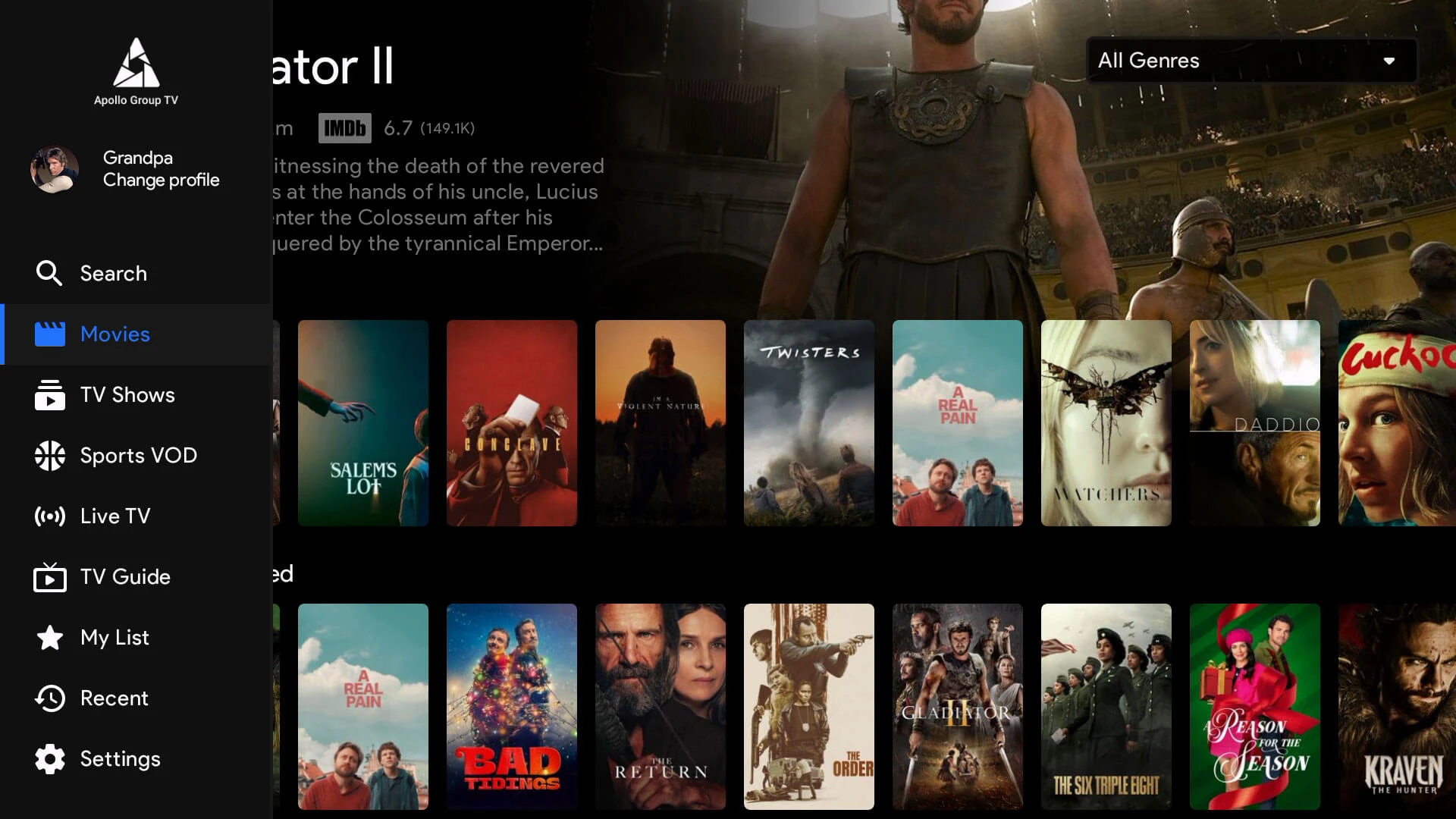
Apollo TV Group Login gives you access to live TV, on-demand content, and major sports events, including the World Cup 2026. If you’re in Canada, signing in might feel confusing, especially with portal links, magic codes, and device errors.
This guide explains everything you need. You’ll get the official login portal, how the OTP login works, what to do when channels don’t load, and why certain devices fail to connect. We’ll also cover Canada-specific problems like ISP blocks and timezone mismatches. Whether you’re using a Firestick, Smart TV, or mobile app, this page helps you get logged in, fix issues, and watch without interruptions.
Table of Contents
What Is Apollo TV Group Login?
Apollo TV Group Login lets you access your IPTV dashboard, where you can stream live television, watch video on demand, and follow premium sports channels. It connects your device or app to your subscription, so you can view channels based on your plan.
There are two main types of access. The first is the web-based portal, which uses a one-time password (OTP) sent to your email. The second is app-based login, used on Firestick, Android TV, or Smart TVs, where you might need Xtream Codes or your server URL.
Many users experience login issues. These often come from expired subscriptions, wrong credentials, or using more devices than allowed. Apollo TV Group Login problems are common, but almost always fixable with the right steps.
Official Apollo TV Group Login Portal
The official Apollo TV Group Login portal is where all verified users can sign in using a one-time password (OTP) sent to their email. Unlike traditional logins that ask for a saved password, this portal relies on email-based authentication. Each time you want to access your account, you enter your email and receive a unique magic code. This method improves account protection and limits unauthorized access.
Some users also have the option to sign in using their Google account. This helps avoid entering email addresses manually, especially on mobile or Smart TVs.
Using the correct portal matters. Fake login sites can steal your information or lock you out. Always make sure you’re on the real Apollo TV Group Login page, especially if you received credentials from a reseller. Some resellers give access details that do not work on the main portal. If your code fails or you see repeated errors, you may not be using official access.
If you’re unsure about your credentials, check whether they came directly from Apollo or a third-party provider. This small check can prevent login errors and keep your account safe.
How to Login to Apollo TV Group (Step-by-Step)
Login Using the Official Portal (OTP / Magic Code)
To complete your Apollo TV Group Login through the portal, follow these steps:
- Enter your email on the official portal page.
- Check your inbox for a one-time password (OTP) or magic code.
- Paste the code into the login field to access your dashboard.
This method does not require a saved password. If the email doesn’t arrive, check your spam folder or retry the process. For users in Canada, some ISPs may delay or block these emails, so switching to mobile data can help.
Login on Firestick or Android TV
To access your Apollo TV Group Login on a Firestick or Android TV:
- Download the IPTV player app compatible with your subscription.
- Enter your Xtream Codes, which usually include username, password, and server URL.
- Make sure the app is updated and your device is not over the connection limit.
If login fails, double-check credentials and internet stability.

Login on Smart TV (Samsung or LG)
Smart TVs often don’t support every IPTV app. If your TV lacks support, you may need to log in through a browser or cast from another device. Some users use a supported emulator app, but this can cause issues if not set up properly.
When your Apollo TV Group Login on Smart TV fails, test your login on a phone or tablet to rule out device problems.

Login on Mobile (Android or iOS)
Mobile access is simple but needs proper permissions:
- Install the IPTV app
- Allow storage and network access
- Use the correct login method (OTP or Xtream)
App crashes or blank screens often mean you need to clear cache or reinstall.
Login on PC or Mac
For desktop access, go to the official portal and use the OTP method. Emulators like Bluestacks may work but can block login if not configured correctly. If the Apollo TV Group Login fails on your PC, try using another browser or disable extensions.
Apollo TV Group Login Not Working? (Fixes)
Many users run into problems during the Apollo TV Group Login process. Most of these issues are caused by simple mistakes, expired subscriptions, or device conflicts. This section walks you through the most common problems and how to fix them.

Invalid Username or Password
This error usually means your login details were entered incorrectly. Check for:
- Extra spaces before or after your email or code
- Case-sensitive fields
- Using a password instead of an OTP code
If your Apollo TV Group Login fails here, try requesting a new code or restarting your device.
Subscription Expired or Suspended
When your subscription has ended, login may still appear to work, but your content won’t load. You may see messages like:
- No channels available
- Account inactive
- Access denied
Check with your provider to confirm your account status. If your Apollo TV Group Login was working recently but now shows errors, this is often the cause.
Login Works on One Device But Not Another
Each account has a device limit. If you’re signed in on too many devices, new logins may fail. To fix this:
- Sign out from unused devices
- Ask your provider to reset active sessions
- Reboot your router and device
This issue is common when sharing credentials. Keeping your Apollo TV Group Login limited to personal devices helps prevent these problems.
App Freezes on Login Screen
When the app doesn’t load past the login page, it may be caused by:
- Outdated app version
- Corrupted cache
- Internet drops during login
To fix this:
- Clear the app cache from device settings
- Uninstall and reinstall the app
- Use a wired connection if possible
If the Apollo TV Group Login screen still freezes, test it on another device to rule out hardware issues.
No Channels or VOD After Login
Sometimes, after completing your Apollo TV Group Login, you may notice that channels or video on demand (VOD) options are missing. This can be frustrating, especially when your account appears active and your device is signed in correctly.
Server URL Is Missing or Incorrect
If you’re using an IPTV player, the server URL must be entered exactly as provided. A small typo can prevent channels from loading. Check your login info carefully. Even if your Apollo TV Group Login is successful, missing server details will block content.
Playlist Failed to Load
A blank or empty playlist usually points to:
- Expired subscription
- Incorrect Xtream Codes
- Server temporarily down
Restart your app and re-enter your login details. If your Apollo TV Group Login still shows no channels, contact your provider to confirm the playlist is active.
Device Limit Reached
Too many devices logged in can stop your playlist from loading. Even with a successful Apollo TV Group Login, content access may be restricted if you’ve passed your allowed device count. Log out from other devices or request a session reset from your provider.
EPG Still Syncing
Sometimes channels appear blank because the electronic program guide (EPG) is still updating. This can take a few minutes after login. If you’re logged in but see no guides or titles, give it time to load. This is normal after reinstalling the app or switching networks.
App Cache Corruption
App cache problems can block playlists from showing, even after a valid Apollo TV Group Login. To fix this:
- Go to app settings
- Clear cache and app data
- Restart your device
After clearing, open the app and sign in again. You should now see your channels and VOD menu correctly.
Apollo TV Group Login in Canada – What You Should Know
For users in Canada, several unique issues can affect the Apollo TV Group Login experience. From ISP-level filtering to regional settings, understanding these local factors can save you time and frustration.
ISP Throttling and Login Failures
Some Canadian internet providers, such as Bell, Rogers, or Telus, may throttle IPTV traffic. This can cause login delays or connection timeouts. If your Apollo TV Group Login works on mobile data but fails on home Wi-Fi, your ISP might be interfering. Switching to a different network or using a secure connection can often solve this issue.
Timezone and EPG Mismatches
After a successful Apollo TV Group Login, users in Canada may notice that program guides show the wrong time. This happens when the device is set to the wrong timezone or the app does not sync properly with Canadian time settings. Check your device’s system clock and adjust the timezone if needed. Some apps allow manual EPG offset settings to align the guide correctly.
Device Preferences in Canada
Many users in Canada access Apollo TV Group Login from Smart TVs or Firestick. While these are supported, performance may vary based on firmware or model. If you’re using an older device and see frequent loading errors, try using the mobile app or PC portal to test the account. Newer devices tend to offer better stability and smoother login.
When VPN Might Help
Using a VPN in Canada can help bypass throttling, but it’s not always required. If your Apollo TV Group Login works without issues, there’s no need to add a VPN. Only consider it if you face repeated buffering or error messages linked to your internet provider.
Watching Sports and the FIFA World Cup 2026 with Apollo TV Group
A smooth Apollo TV Group Login becomes especially important during major sports events like the FIFA World Cup 2026. When matches are live, login delays, buffering, or device errors can ruin the experience. This section focuses on making sure your access is ready for kickoff.

Why Login Stability Matters for Live Events
During peak hours, thousands of users attempt to log in at the same time. A delayed Apollo TV Group Login can mean missing key moments. To avoid this, log in a few minutes before the match begins. Keep your device updated and avoid last-minute changes to your network.
Peak-Time Login Tips During Matches
- Use a wired connection if possible
- Close unused apps running in the background
- Log out of other devices to reduce load
These steps can improve the success rate of your Apollo TV Group Login when demand is high.
Best Devices for Watching Live Football
For stable sports streaming, use a Firestick 4K, Android TV box, or a newer Smart TV. These devices handle high frame rates better than older models. Make sure the IPTV app is updated and tested before match day. A successful Apollo TV Group Login depends on both your device and connection.
Avoiding Buffering During Matches
Buffering usually comes from poor network speed or too many devices online. During World Cup matches, pause background downloads and avoid shared Wi-Fi. Test your speed before the game. If your Apollo TV Group Login completes but the stream lags, the issue is likely bandwidth.
Account Security and Login Best Practices
Keeping your account safe is just as important as getting a successful Apollo TV Group Login. Many users overlook security steps, which can lead to account suspension or unauthorized access. Following these simple practices helps you stay protected and keeps your connection stable.
Avoid Sharing Your Login
Never share your Apollo TV Group Login details with others. Each account has a device limit, and sharing increases the risk of lockouts. If too many people try to sign in, your access may be blocked without warning.
Respect the Device Limit
Most accounts allow a specific number of active devices. Stay within that limit to prevent errors during login. Exceeding the cap often results in failed connections, even if your Apollo TV Group Login is correct.
Use Private Networks Only
Logging in on public Wi-Fi networks is risky. These connections are often unstable and vulnerable to data theft. For a safe Apollo TV Group Login, always use a secure and private network.
Keep Your Apps and Devices Updated
An outdated app or operating system can cause login failures or streaming errors. Regular updates ensure compatibility with the latest servers. Before using your Apollo TV Group Login, check for updates in your app store or device settings.
Frequently Asked Questions (FAQ)
These answers cover the most common problems and concerns related to Apollo TV Group Login. Each question is written to match what real users search, helping both with troubleshooting and search visibility.
Where do I find my Apollo TV Group login details?
Your login details are sent to your email after you subscribe. If you’re using the portal, you’ll enter your email and receive a one-time code. For app-based access, check if your provider gave you Xtream Codes or a server URL.
Why does Apollo TV Group login fail?
The most common reasons include expired subscriptions, wrong login method, or device connection limits. If your Apollo TV Group Login fails, double-check your email, device, and internet connection.
Why do I see “invalid credentials” when logging in?
This happens when you enter the wrong email or use an expired OTP code. Make sure there are no extra spaces and request a new code if needed. In some cases, your app may need to be updated to process the login correctly.
Can I use the same login on multiple devices?
Yes, but only within the device limit allowed by your plan. If your Apollo TV Group Login works on one device but not another, it could mean you’ve exceeded the allowed number of connections.
Do I need a VPN to log in from Canada?
Not always. A VPN might help if your ISP blocks the portal or throttles IPTV traffic. If your Apollo TV Group Login works without one, then a VPN is not required.
Final Checklist – Fix Login Issues Fast
Before contacting support or reinstalling your app, go through this quick checklist. Many Apollo TV Group Login problems can be fixed with just one or two of these steps.
Active Subscription
Make sure your account is paid and not expired. Login errors often happen when the subscription is inactive.
Correct Login Method
Use the official portal for OTP code logins. If you’re using an app, confirm if you need Xtream Codes or a server URL.
Device Limit Not Exceeded
Too many devices connected at once can block your Apollo TV Group Login. Log out of unused devices if needed.
App and Device Updated
Outdated apps or system software may cause failed logins or missing channels. Always update before trying again.
Stable Internet Connection
Slow or unstable Wi-Fi can interrupt the login process. Try switching to mobile data or restarting your router.
Clear App Cache
Cache problems can prevent channels from loading even after a successful Apollo TV Group Login. Clear it in your app settings.
Use Official Links Only
Always log in from the official portal or trusted IPTV app. Fake sites can cause account issues or steal data.
If all these steps check out and you still have problems, reach out to your provider with screenshots and error messages. Fixing your Apollo TV Group Login is often quicker when you provide exact details.